Virtual Datasource
A Virtual Datasource (VDS) is a datasource which contains an aggregation of datasources that match a specific criteria. This criteria can be specified by the user as a set of conditions that the datasources must match. This set of conditions is defined as the "filter" of the VDS. The set of datasources that match these criteria is defined as "underlying datasources". These criteria are applied to all datasources that belong to the namespace where the VDS is utilized. The aggregation of the VDS can be done on a set of specified channels which may potentially be part of the underlying datasources.
The VDS filter is a set of conditions over the values of specified properties of tags. The VDS filter is explained in more detail in VDS filter
The data to be aggregated is calculated only for the period where the tag's property value of each underlying datasource matches the VDS filter and is valid. This period of validity is called the Active Datasource Range, and it is calculated in a specific manner, which is explained in Filter and VDS timeline
The number of included datasources over time is stored in DATASOURCE_COUNT channel of the VDS. This number also
depends on the
VDS filter and VDS timeline
VDS filter
The VDS filter is used to define the datasources that are included in the VDS. For instance, if the user
creates a VDS that contains all datasources that contain a specific power level the filter to be created would be
something like: power.level = 20, where power is the name of the tag, level is the name of the property belonging
to that tag and 20 is the value that must be matched on a datasource in order to belong to this VDS.
The VDS filter may contain multiple conditions that satisfy a multi-condition criteria. This can be set with boolean
operators and be separated with brackets. For example a user can define the following filter: (power.level = 20 AND location.country = NL) OR status.active = True.
NOTE: to make the filtering logic efficient it is advised to simplify the filter using boolean algebra simplification.
Currently, the filter attribute is a special tag (Tag = group, Property = filter) created in the VDS itself.
The following video showcases an example of a VDS:
VDS timeline
The VDS timeline is a core concept of the VDS as it reflects how the underlying datasources are active during a specific
period of time and how this affects to the aggregation of the VDS.
The VDS timeline is calculated taking into account the Valid From attribute of all the tags that are part of the
filter and with the conditions specified in the filter, i.e. a datasource is active in the period from the time of the
Valid from of the tag (or combination of tags) from the filter and onwards.
The following is an example of a tag with a specific Valid from attribute.
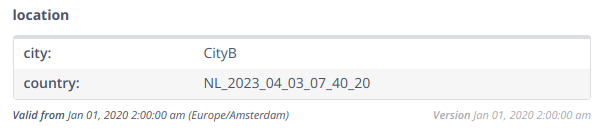
The following conditions affect the timeline:
- If a tag has no
Valid fromattribute the datasource is considered active from the "beginning", i.e. the earliest channel data is considered active. - If the tag is not removed then the datasource is active until the "end", i.e. the latest channel data is considered active.
- Tags may have multiple versions with different
Valid Fromvalues, all versions are taken into account.- The earliest
Valid fromis used as the earliest point where the datasource is active. - If the tag is removed at a certain point the
Valid fromof the removal is used as the end of the activity period. - If the tag property value does not match in a particular version, then the
Valid fromof that tag version is used as the end of the activity period.
- The earliest
- The boolean operations applied on the filter affect the activity period, also taking into account the above rules.
For example: if using the operator
ANDover two or more tags the datasource is active only when all tags are active at the same time. Similarly, if using the operatorORthe datasource is active when any of the tags involved in the operation is active.
The following example illustrates a tag that is removed at a point in time, and activated later again.
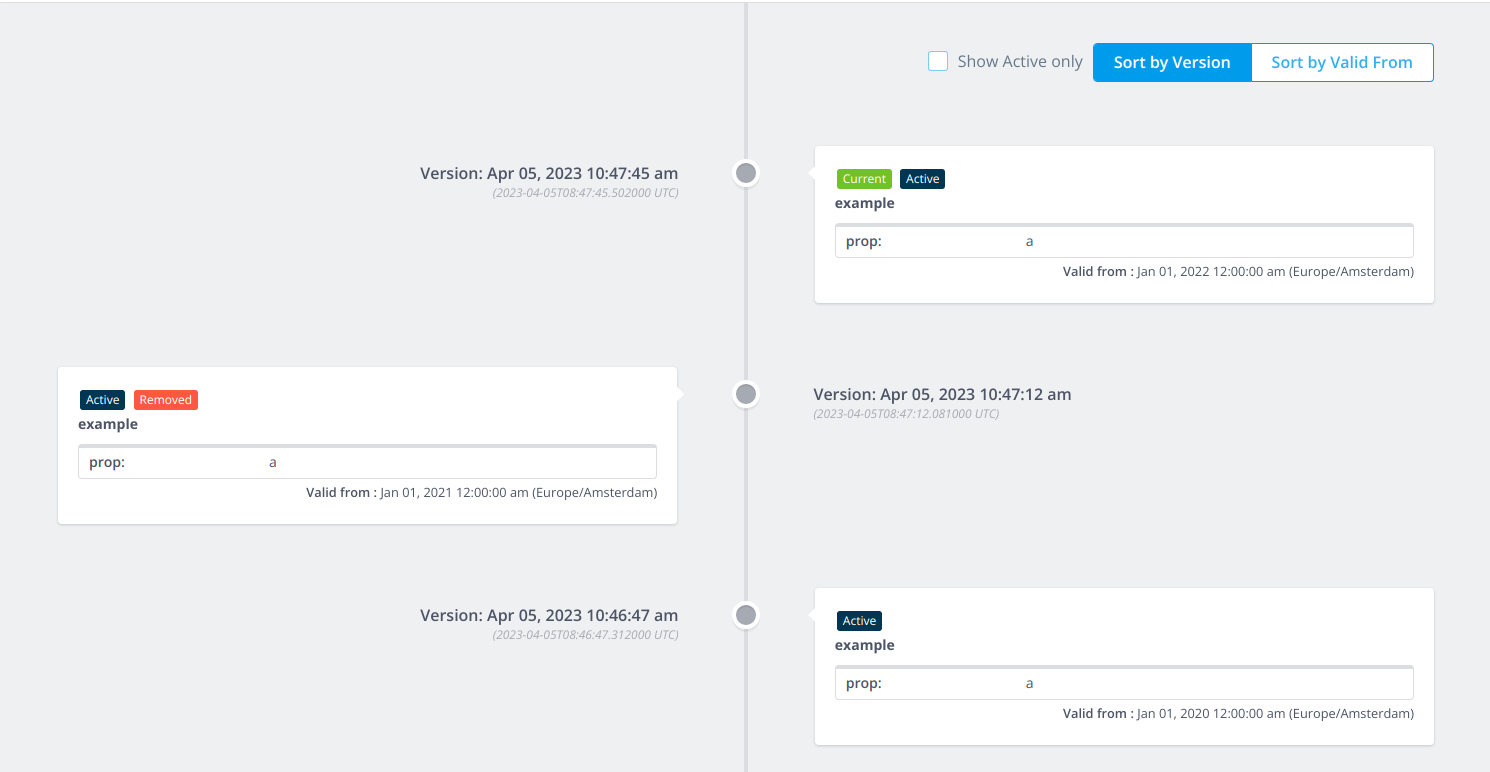 In this example if the filter is
 example.prop=a then the period of activity would start from Jan 1,2020 then finish
in Jan 1,2021 and then start again in Jan 1,2022.
The following example illustrates the VDS timeline applied when using filters with AND and OR operators
gantt
    dateFormat  YYYY-MM-DD
    title       Activity period with two datasources
    %% (`excludes` accepts specific dates in YYYY-MM-DD format, days of the week ("sunday") or "weekends", but not the word "weekdays".)

    section Datasource 1
        tagA.propx = y  :active,  done, 2020-01-01, 3d

    section Datasource 2
        tagB.prop x = z :active, done, 2020-01-02, 3d

    section filter
        tagA.propx = y AND tagB.prop x = z :active, done, 2020-01-02, 2d
        tagA.propx = y OR tagB.prop x = z :active, done, 2020-01-01, 4d
VDS from Trigger
Users can generate VDS from a trigger the following way.
The trigger technical name is vds_aggregation_ingest and the following properties can be configured:
- "vds_filter": mandatory. The VDS filter.
- "channel_list": mandatory. List of channels to aggregate on the VDS.
- "vds_id_template": mandatory. Template for the VDS name to be created.
- "group_by": Optional. List of aggregate by key-value elements based on the tag property.
- "flow_id": Optional. ID of the flow to be executed on the resulting VDS.
The "channel_list" and "group_by" properties must be specified as comma separated values.
The vds_id_template is the name of the VDS to be used. It can be used with or without the "group by" function.
If used without the "group by" then it'll use the name as specified in this attribute. If using the "group by" function
please take a look at group by function
Create VDS with Group By
The "group by" function can be used to automatically generate or update multiple VDSs corresponding to the combinations of values of specified pairs of tag.property values. For instance, a user can create a "group by" attribute with values: "location.country, power.level". Let's assume that we have several datasources with the following values:
| location.country | power.level | datasource id |
|---|---|---|
| NL | 20 | A |
| NL | 30 | B |
| US | 20 | C |
| US | 30 | D |
| NL | 20 | E |
| US | 20 | F |
Then it will generate or update 4 VDS with the corresponding combinations and underlying datasources:
- NL-20 (A, E)
- NL-30 (B)
- US-20 (C, F)
- US-30 (D)
Automated naming
By using the "vds_template_id" the user can specify the names of the VDS to be used according to the results of the "group by" function.
The format of this attribute should follow something like "some_name0some_other_characters1" Elements in between curly brackets represent the index of a "group by" element. For example a VDS template id corresponding to a group by like "tagX.propA, tagY.propB" could be "VDS_name0with_value1" where 0 represents all possible active values that the "tagX.propA" may have in the underlying datasources and 1 represents all possible active values that the "tagY.propB" may have in the underlying datasources.
Optional functions
Chained flows
The user can configure to trigger automatically a chained flow on the VDS aggregated channels after the aggregation is
calculated. Chained flows can be configured by passing along by setting the flow_id property in the trigger schedule.
The exported data of a query result can be split into chunk of files with a variable amount of rows. For every query result we need to know when the full data has been processed before we send the flow trigger. For that we store the amount of rows processed for every chunk and compare against the total amount of rows expected (which comes in the ROW_COUNTER_COLUMN created by the query itself). Once all the rows have been processed, the Crunch trigger is sent out.
Please note that the start and end date parameters have been set to 1-1-1970 and 1-1-2050 respectively.
Delay a trigger
It is possible to delay a trigger for the underlying datasources.
The user can set the delay by setting the countdown attribute in the virtualdatasource/trigger request. It also can
be set when triggering a VDS through a rule using the method send_dataflow_virtual_datasource_trigger.
Limit data by start and end date
It is possible to set a limit in the data that will be used by setting the attributes startDatetime and endDatetime.
Updating the filter
It is possible to update the filter through different ways. Using the endpoint virtualdatasource/{name}/update
and using the tag and property group.filter of the VDS.
Its valid_from attribute is used to limit the VDS. For example, if afilter has a valid_from equal to 2023-01-01
the VDS result will only contain datasources that may have data from this date.
When updating the VDS filter we use the Active Timeseries Range which is defined as the timeline of a datasource where it contains data for a specific channel. If the user doesn't define any start and end date, it will be chosen the Active Datasource Range that were created in the previous step. If the user defines a start and end date, it will be checked if there is any overlapping between them and the Active Datasource Ranges.
NOTE: Updating by manipulating directly the group.filter tag is not possible at this moment.
How to create a virtual datasource
Virtual Datasources can be created through the API and file ingestion. It is important to define the filter, which is used for grouping other (virtual) datasources that adhere to the filter over time. Below, the two methods are described of creating a virtual datasource.
Creating a VDS using the API
Using the POST call /ewx/v1/virtualdatasource/create, you must define:
- The list of channel classifiers, which may be empty
- The datasource classifier of the new virtual datasource - this must be a virtual datasource classifier
- The filter based on tag properties. It must follow the format
{tag name}.{property key}={some value}. Available operators are [ AND, OR ], and brackets are not allowed. Also mind that spaces are not allowed within{tag name}, {property key}, or {some value}. - The timezone of the datasource (see here)
- The rest of the parameters can be set to false
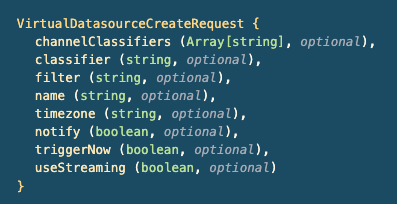
After making the call, the datasource is created and can be visited by navigating to the URL: {base_url}energyworx.net/datasources/view/builder?datasourceIds={virtual_datasource_id}
Note
In this specific example the VDS has no tags, and therefore will not be retrieved by search. Search only finds datasources which have at least one tag.
Creating a VDS using Smart Integration
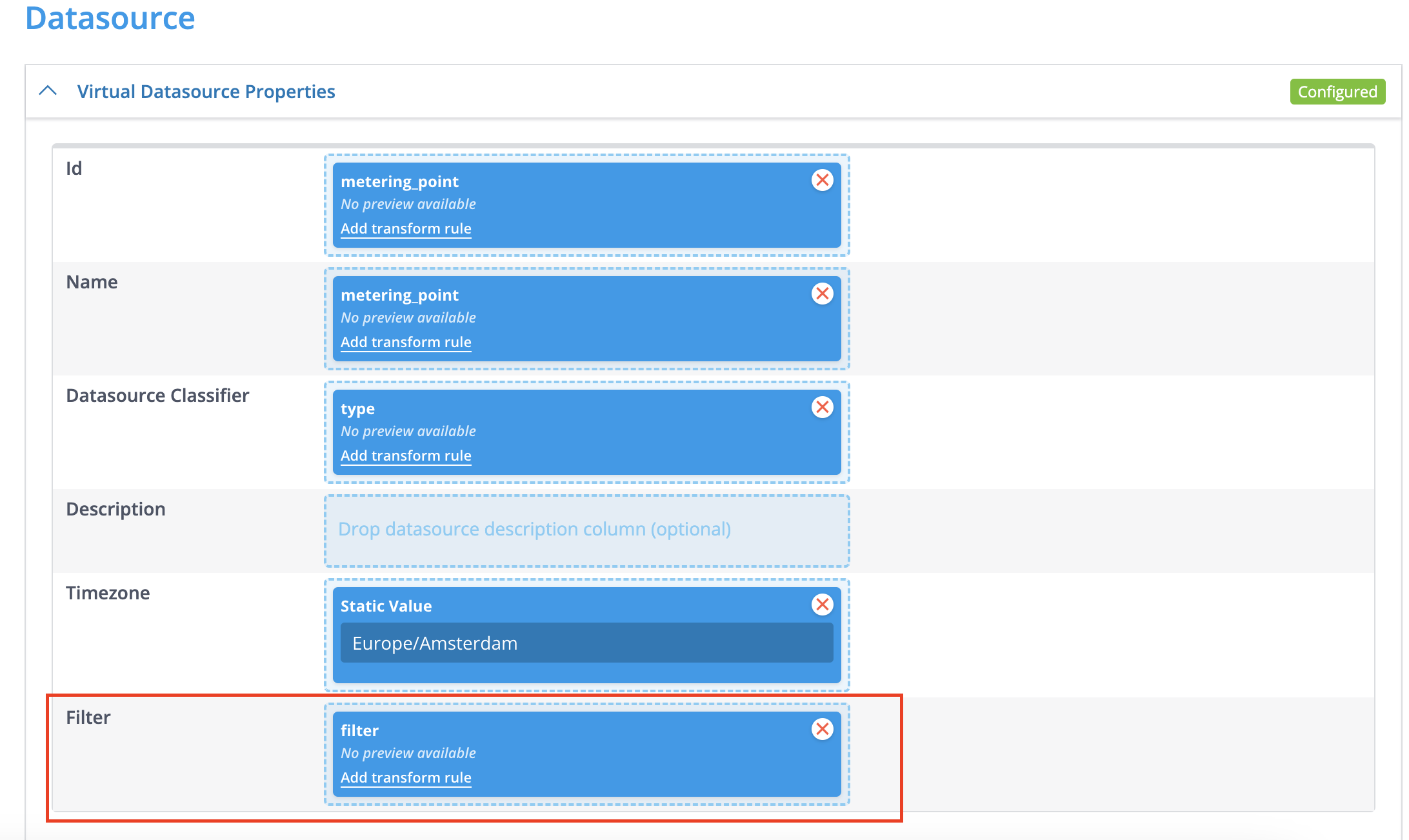
Within the Transformation Configuration, there is the possibility to configure a filter within the Datasource Properties section. The filter needs to adhere to the same restrictions as mentioned above. This way, you can create multiple virtual datasources at once by writing a file with the filters specified within a column or element of the file.
Example CSV input, which you can also make dynamically in BigQuery/Trigger Schedule:
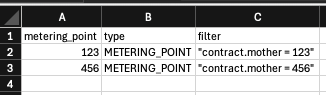
Example TC, using the CSV:
Steps to Create a VDS from a Message:
Consider a datasource with the tag customer and the property id set to customer-test. If there are other datasources with the same customer tag and we want to aggregate them based on their respective customer.id, we can create a VDS to achieve this.
Prepare the Ingestion Message:
- The message you ingest must contain the identifier for the new VDS datasource.
- It should also include the value to filter on, unless this value is static.
- Note: If the VDS datasource ID and filter value are constant, you can define them directly within the Transformation Configuration (TC) using the static value helper, eliminating the need to include them in the message.
- Optionally, the message can contain aggregated time series data that will be stored within this newly created VDS.
Create a Transformation Configuration (TC):
- Follow the standard procedure for creating a TC as outlined in this guide here
Define the VDS Filter in the TC:
- Navigate to the
Datasource propertiessection within your newly created TC. - Add a
Filterby dragging and dropping aStatic ValueHelper column to the Filter. The filter needs to adhere to the format:tag.property=value. - For our example scenario where we want to create a VDS for the
customertag with theidproperty equal tocustomer-test, the initial filter would be:customer.id=customer-test.
Make the Filter Value Dynamic (If Necessary):
- If the value you want to filter on is present in the ingested message, you can make the filter dynamic.
- Locate the relevant column from the detected columns in your TC (e.g., a column named
vds_datasource_idwith a value likecustomer-test). - Drag and drop this column to the
Filterproperty in theDatasource properties. - To achieve the desired format of
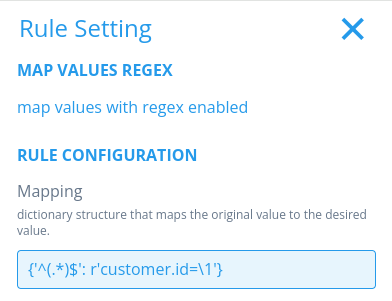
customer.id=customer-test, we need to add a prefix. For this, use theMap Values Regexfunctionality. Configure it to addcustomer.id=before the dynamic value from thevds_datasource_idcolumn. This ensures the final filter applied will becustomer.id=customer-test.

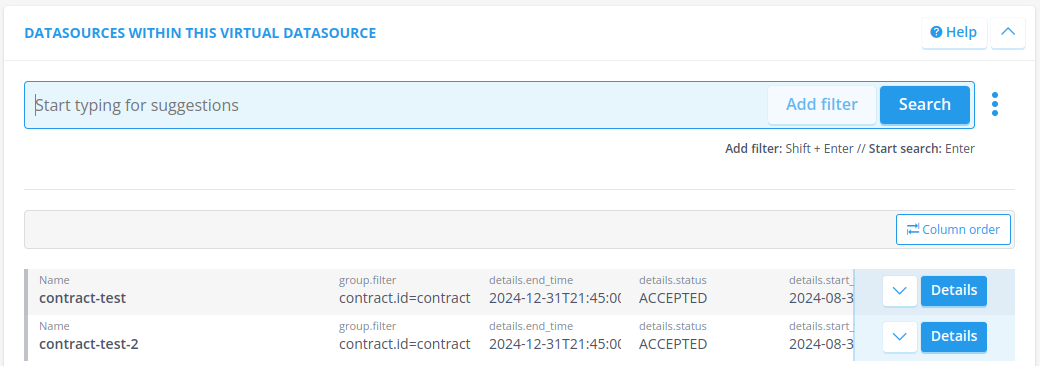
Now, if we ingest the message with a MA and the TC we created a minute ago, it will result in a new VDS.
Good to Know
For automatically aggregating data into your VDS, you can set up a trigger schedule. This involves creating a trigger schedule (see here for instructions) and then creating a Transformation Configuration (TC) based on the output of that scheduled process.